
Explore the Library on your own
You do not need to wait for a teacher to start doing science. Students can sign up on their own, browse the Library of ready-made investigations, and import any activity to play it — with the same AI assistants, steps, points, and badges as classroom work.
1. Create your own account
On the landing page, click Get Started and choose Student. You only need a name, an email, and a password — student accounts are approved automatically, and you land directly on My Activities.
If your teacher created an account for you instead, sign in with the email and password they gave you. Everything in this guide works the same.
2. Join a class with a class code
If your teacher shares a class code, click Join a class on your My Activities page and enter it. You become part of that class roster, and any activities the teacher assigns appear on your dashboard grouped under the class name.
Joining a class does not remove anything you imported yourself — self-imported activities stay in their own My imported activities section.
3. Browse the Library
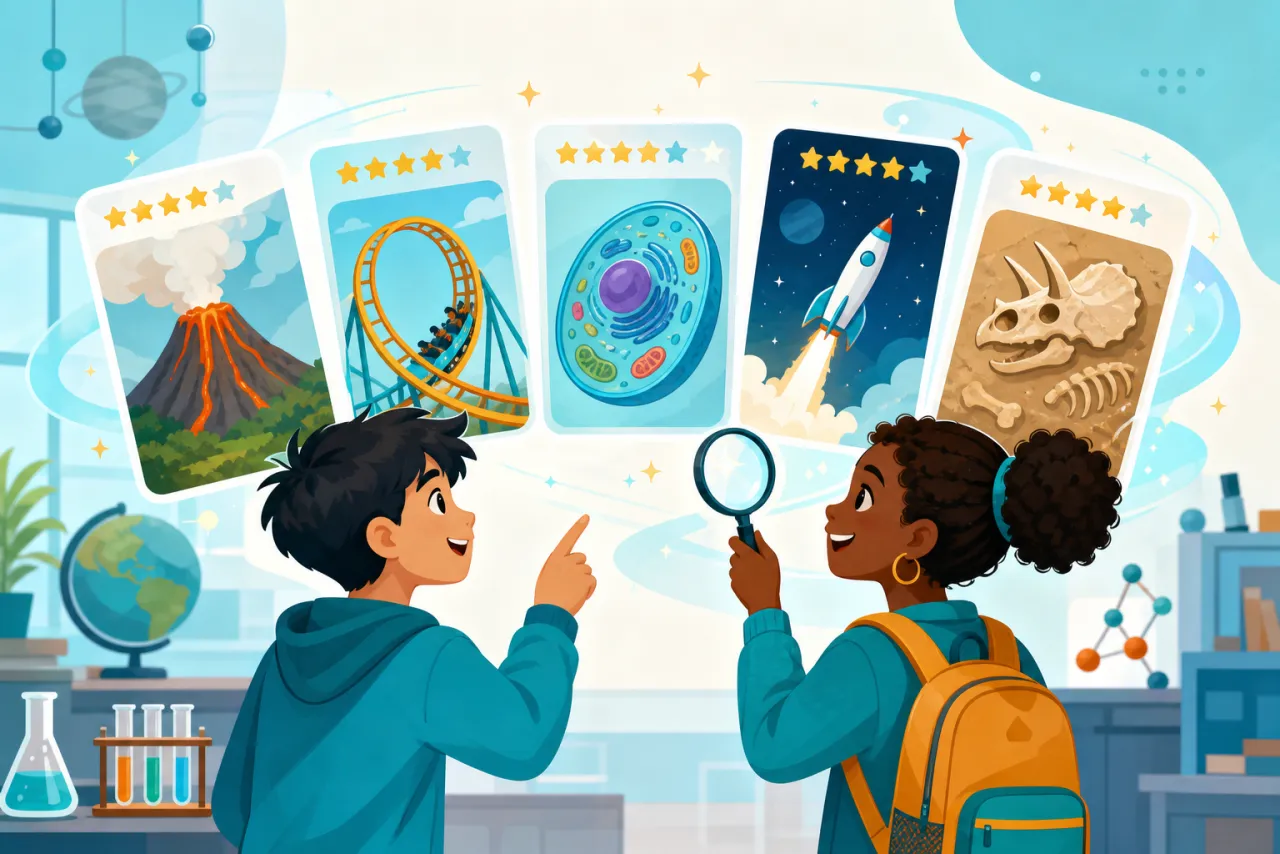
Open Library in the top navigation. Each activity card shows:
- Grade band and subject.
- Difficulty as "Level: N" (1–5).
- The activity type — Simulation Exploration, Game Designer, Scenario-Based Content Quizzes, Grill-Me Challenge, Career Visit, Science Team Investigation, Mad Scientist Challenge, Curious Emma, or Role-Playing Quest.
- An average star rating from teacher reviews.
- An import count — how many different people have imported this activity.
Use search, the type filter, and sort to find something that fits. Ratings and import counts are a quick way to spot activities other classrooms loved.
4. What students see (and what stays hidden)
When you open a library activity as a student, you see the description, the goal, and what you will do — enough to decide whether to play it.
You do not see the AI assistants' instructions, answer keys, or grading criteria. That is on purpose: the investigation only works if the AI can coach you through it without the answers being visible up front. Teachers and admins see the full detail view.
5. Import an activity and play
Click Import this activity. You get your own copy under My imported activities on your dashboard, with the activity's AI assistants ready to chat.
Everything from the student workspace guide applies: work step by step, build artifacts as evidence, and earn points and badges when you finish — imported activities count just like assigned ones.
If the library version of an activity is updated later, importing it again syncs your copy to the newest version.
6. Ratings and reviews
The star ratings you see come from teacher reviews — teachers who used an activity with real classes rate it and describe how it went. Students cannot write reviews, but the average rating and the import count on every card help you pick well-tested activities.
7. What self-signup students can and cannot do
| You can | You cannot |
|---|---|
| Browse the Library and import activities | See AI prompts, answers, or grading criteria |
| Play activities with full AI assistants | Create classes |
| Join classes with a class code | Create activities from scratch |
| Earn points and badges | Write library reviews |
If you want the full creation tools, ask a teacher to run Science Inquiry Studio with your class — or show them your favorite library activity as a starting point.